



To use Google’s outdated content removal tool, open the Refresh Outdated Content page, click “New Request,” choose why you’re filing, paste in the page or image URL, and hit Submit.
Few things are more maddening than finally getting a page taken down…then Google keeps serving up the old version like nothing happened. Good news: there’s a fix, it’s free, and it takes about two minutes.
Key Points
- Open Google’s Refresh Outdated Content tool and click “New Request” to start the process.
- Choose the appropriate request type, such as refreshing a webpage that has changed or removing a page that no longer exists.
- Paste the exact URL from the Google search result, and if the page is still live, provide 1–2 words from the outdated snippet that no longer appear.
- Submit the request and track its status, with most requests processed within a few days.
What is Google’s Outdated Content Tool?
Google’s Outdated Content Removal tool (officially the Refresh Outdated Content tool) lets anyone with a Google account ask Google to update or drop a search result that no longer matches the live page.
Say a website deleted an article about you, or edited out your old address, but Google still shows the old title and snippet. That’s an outdated result. This tool asks Google to recheck the page. If the page is gone, the result drops out of search. If it changed, Google pulls the stale snippet until it recrawls. It doesn’t touch the website itself.
How to Use Google’s Outdated Content Tool
Step 1 – Open the Tool
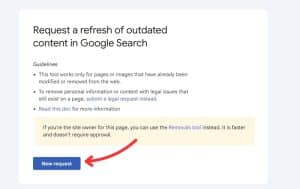
Sign into any Google account. Open the tool and click “New Request.”
Step 2 – Choose Your Reason
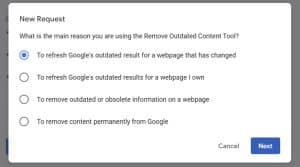
A new box will appear asking your reason for using the tool. Select “To refresh Google’s outdated result for a webpage that has changed.”
Step 3 – Paste the URL
Copy the URL straight from the Google result. Google says to right-click the result link and choose Copy Link Address, not copy the displayed text or the address bar after clicking through.
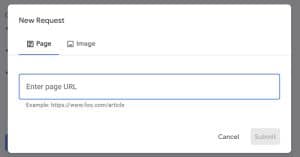
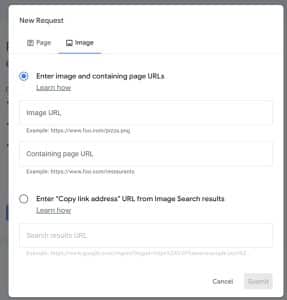
Image requests need both the image URL and the page it sits on, and you have to file a separate request for every page where the image appears.
If the page is still live, Google will ask for 1 to 2 words that appeared in the old search snippet but are no longer on the page
4 – Submit Your Request
Click the blue “submit” button.
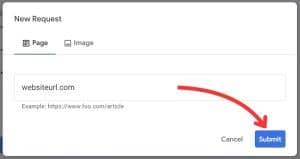
You will get confirmation that your request has been submitted.
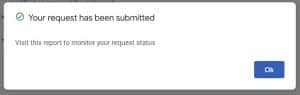
Hit “OK” to be taken back to the main page where you can see your submitted requests.
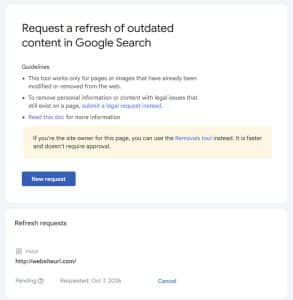
What Happens After You Submit a Request?
Most requests are processed within a few days, and you can track each one from the tool’s main page.
Every request you file lands in a queue at the bottom of the tool, with a status next to it. Here’s what each status means and what you should do about it:
Status | What it means | What to do |
Pending | Google is still reviewing your request. This usually takes a few days. | Sit tight. |
Approved | Google accepted the request, and the update should already be live in search. | Search for the result again to confirm the change. |
Denied | Google turned the request down. You’ll see a link explaining why. | Check the denial reasons below, fix the issue, and refile. |
Expired | The approval has lapsed, either because 180 days have passed or because the URL no longer exists. | Usually nothing, unless the outdated result comes back. |
Cancelled | You, or the site’s verified owner, withdrew the request. | Refile if you still need the update. |
Approved doesn’t always mean gone
This is the part that trips people up.
If the page was deleted, an approved request takes it out of Google’s results. If the page still exists and was only edited, approval just wipes the old snippet. The page itself can keep showing up in search until Google’s crawler comes back around and reindexes it.
So if the link is still there a week later, don’t assume the request failed. Look at the snippet instead. If the old text is gone, the tool did its job.
Why Was My Outdated Content Request Denied?
Most denials happen because the content is still on the live page, the URL was entered in the wrong format, or Google had already dropped the outdated content.
Before you get frustrated, check which denial you got. Two of them, “Outdated content not in index” and “Page not indexed,” are actually good news. They mean there’s nothing left in Google for you to remove.
Denial reason | What it means | What to do next |
Outdated content not in index | The words you entered aren’t in Google’s copy of the page. Either Google already updated it, or the words were never there. | If the result looks right, you’re done. If not, refile using words that actually appeared in the old snippet. |
Page not indexed | The URL isn’t in Google’s results at all. | Nothing. Just double-check that you copied the URL directly from the search result. |
Content still on page | The text or image is still on the live page. | Ask the site owner to take it down, then submit a new request. |
Page not removed | You reported the page as deleted, but it still exists. | Refile as a changed-page request, or get the content removed at the source first. |
Duplicate request | You already have a request pending for this URL. | Wait for the first one to finish. |
Incorrect URL format | The URL wasn’t entered the way Google needs it. | Right-click the search result, choose “Copy link address,” and resubmit. |
Unspecified | Google couldn’t fulfill the request and won’t say why. | Check the URL and your words, then try again. If it keeps failing, it may be time to bring in a removal specialist. |
How to Remove Dead Links from Google
To remove a dead link from Google, submit the broken URL through the Refresh Outdated Content tool, and Google will drop it once it confirms the page no longer exists.
A dead link is a search result that points to a page that’s been deleted, usually landing you on a 404 error. Google will clear these out on its own eventually, once it recrawls the page and sees it’s gone.
But “eventually” is doing a lot of heavy lifting there. Google crawls on its own schedule, and when the dead result has your name in the title, waiting it out isn’t much of a plan.
To speed things up:
- Right-click the dead result in Google and copy the link address.
- Open the Refresh Outdated Content tool and click “New Request.”
- Choose the option for a page that no longer exists, paste the URL, and submit.
One catch: the page has to actually be gone. If it still loads, Google will deny the request.
And if the dead page is on a site you own, you can skip the tool entirely. Google says old 404 pages drop out of results naturally as it recrawls your site.
Does Bing Have a Content Removal Tool?
Yes. Bing’s Content Removal Tool handles the same job, with one option for dead pages and another for pages that have changed.
- Go to the Bing Content Removal Tool & sign in with a Microsoft account
- Paste the exact URL from Bing’s results
- Choose Page Removal for dead pages or Outdated Cache Removal for changed ones; the cache option asks for text that’s on the old version but not the live page
What If the Content Is Still Live?
If the content is still on the live page, the outdated content tool can’t help. You’ll need to get it taken down at the source, qualify for one of Google’s removal policies, or push it down in search results.
Here’s how those options break down.
Ask the site owner to remove it. This is usually the cleanest fix. Once the content is gone from the site, you can come back and use the outdated content tool to clear Google’s old result. Our guide on how to remove something from the internet covers how to find the right contact and what to say.
Use Google’s personal information removal options. Google will consider removing results that expose details like your home address, phone number, email, government ID numbers, or bank information, along with doxxing content. These requests go through Google’s personal content forms, not the outdated content tool.
File a legal removal request. Copyright infringement, court orders, and some defamatory content can qualify for removal through Google’s legal channels. See our guide to submitting a Google DMCA takedown notice.
Suppress it when removal isn’t possible. Plenty of content won’t qualify for removal, including accurate news coverage and reviews. In those cases, search result suppression builds up positive, authoritative content so the negative result gets pushed down the page and out of sight. It doesn’t erase anything, but it can change what people find when they search your name.
Not sure which route fits your situation? Reputation911 has handled content removal since 2010, for individuals and businesses alike. We can tell you what’s realistically removable and what isn’t.
Frequently Asked Questions
Yes. There’s no cost to file a request. You only need to be signed in to a Google account, which Google requires to prevent abuse.
No. The tool is built for people who don’t own the page. If you’re a verified site owner in Search Console, Google points you to its Removals tool instead.
Only if the publisher has already taken the article down or edited out the part about you. If the article is still live and unchanged, Google will deny the request. For live articles, see our guide on how to remove negative articles from Google.
No. Each request covers a single URL. If the same content shows up at several URLs, you’ll need a separate request for each one. The same goes for images: every page where the image appears needs its own request.
The Removals tool is only for verified site owners, and it hides a live page from search for about six months. The Refresh Outdated Content tool works for anyone, but only when the content has already been deleted or changed on the source page.